It doesn’t take an expert to create one. It just takes a little care.
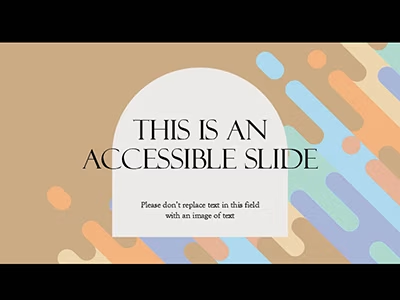
Most PowerPoint users have noticed that slides come with their own format. The part many may not know: those placeholders have accessibility built into them. When an educator deletes out the standard header, text, graphic, chart, photo and video fields, there goes the built-in accessibility. Heading structure, a logical reading order, text that can be copied, enlarged, and manipulated—all of it disappears, often in the name of a cute design.
As teachers create presentations celebrating America’s 250th Anniversary, this is a great time to review what makes PowerPoint slideshows accessible.
One common error replaces text on a slide with a screen shot or graphic of text, rendering it inaccessible. George Mason University associate professor Kimberly Avila asks those who create or purchase presentations to avoid using images of text rather than text itself.
Avila’s work has centered on accessibility for blind and visually impaired students, but she stresses that accessibility features are used by students with a wide range of disabilities. Earlier this year, she concluded a study of 15 highly-ranked, popular, teacher-created slides from a teacher marketplace. The information was on social studies and history topics, and she evaluated 449 slides in all.
The vast majority of the slides she evaluated (93 percent) had at least some images of text that impeded access. Nearly half had text that was only in image format, even when the slide contained lots of text. Only one of the 15 presentations she analyzed had all the text content in the built-in headings and text fields.
“When I ran it through the checker, PowerPoint just came back and said it’s missing alt text.” While re-creating the slide content in alt text may seem like a solution on the surface, Avila said it’s not a good fix.
“Alt text is meant for images that are either relevant, or if they’re decorative, you can mark it as such. Alt text is not meant to replace text on all the slides.”
While a screen reader will read alt text, not everyone who finds an image of text inaccessible will use the assistive technology. Sometimes they just need to select text, make it larger or bump up the contrast—actions a screen reader can’t do. Students with a number of disabilities—learning disabilities, motor impairments, or visual fatigue, to mention just a few—will all benefit from accessible slides.
Automated checkers also missed some contrast and reading order errors, Avila said. At this point in technology development, she has not found a good substitute for review by a human who wants all students to access the material.
“I would say a majority of the time, [the need for accessible materials is] not obvious. And even when it is obvious, … the assumption is made that if you have really low vision or you’re blind, that you’re going to have a helper to read everything for you.
“Most of us who are blind and have low vision want to be as independent as possible. We like to do things on our own.”
Those students’ future educators and employers would prefer that, too.
When a presentation is accessible, everyone benefits. “Sometimes you don’t know how beneficial accessibility is until you don’t have it,” Avila said. Sometimes learners who need accessible materials—but don’t receive them—don’t know how impactful those materials would be on their lives.
With errors being so common, is it possible for ordinary people to create an accessible presentation?
“One hundred precent, yes,” Avila said. “Instead of taking a screen capture of the text, copy and paste it in. When PowerPoint gives you a new slide, it automatically has a title. And then you have a choice of placeholders. If you keep those and type your text in, you’re going to promote that accessibility as well.” Graphic elements should have alt text if they carry important information. Color should not be used to convey meaning.
Beyond all that, Avila urges educators to keep learning. “Accessibility is a significant topic. It’s not a one and done type of topic. … There’s a lot to it. So we’re all still learning, and that’s important.”
For more information on creating accessible materials, you can go over NCADEMI’s Accessibility Basics or enroll in NCADEMI’s free Accessibility Fundamentals Course.